

UNITY & C#
EXPERT DEVELOPER
Getting Started With Unity's UI Toolkit
By Eduardo Martinelli | September 19, 2026
Many months ago I had the great idea to forsake the old UI for my game so I could have the new cooler UI Toolkit features.
I was feeling left behind, old and dusty, and newer games looked better than my unreleased project already.
Initially I built it using uGUI. My plan was to spend a couple days studying UI Toolkit and then get right into converting everything.
That didn't work out.
I quickly realized my lack of frontend experience was stopping me from utilizing UI Toolkit. So I stopped and spent four months studying frontend. The.NET Blazor framework to be specific. Then came back to it.
Equipped with my recently acquired knowledge of proper CSS I was able to quickly reimplement my UI.
I am ready to tell you all about it.
Initial Considerations
As I already mentioned UI Toolkit differs immediately from uGUI because it is very similar to modern frontend technologies.
If you only use Unity and never developed a web app or website you might find the transition daunting.
I'd recommend learning css and implementing a basic web app before diving into UI Toolkit. It will not only teach you a new skill but give you a solid foundation on how UI Toolkit works.
Another way UI Toolkit differs from uGUI is its architecture.
uGUI is built around GameObjects, Components, Canvases, and RectTransforms. It fits nicely amidst the Unity environment. But can be janky and sometimes not precise/responsive enough.
UI Toolkit uses a retained visual tree, where elements are represented by VisualElement objects and laid out and styled through UXML, USS, and C#. Similar to DOM-style frameworks.
After doing the migration you will notice a really nice aspect of UI Toolkit: almost no prefabs.
Many interfaces will no longer need a separate prefab for every panel or control. Layout can live in UXML, styling in USS, and behavior in C#. For reusable UI structures, VisualTreeAsset provides a template-based workflow similar to prefabs.
That means a goodbye to dozens of prefabs holding your UI. Your game runs on game objects and your UI completely separate from it.
This makes a huge difference in project organization.
Equivalencies
To start migrating from uGUI to UI Toolkit let me tell you about the equivalents of both systems.
UI Toolkit comes with a few new windows. Mostly important the UIBuilder window.
UI Builder is the main window from where you can preview, edit and build your game's UI.
I will assume you've used uGUI extensively like most Unity developers.
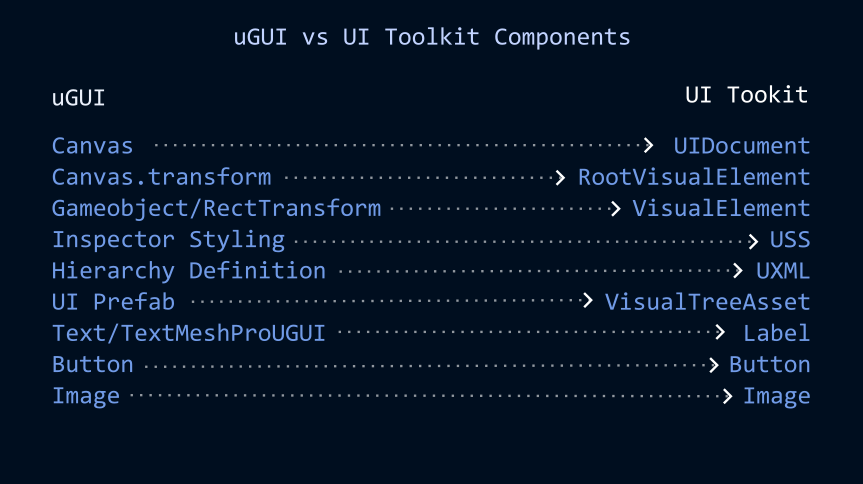
Starting off with the canvas. Instead of having a gameobject with a canvas component. Your root will be a gameobject with a UIDocument component attached and a UXML as a source.
The UIDocument will hold and display your UI files.
Instead of accessing the objects from the canvas as you would with gameobjects, you can access the rootVisualElement property of your UIDocument.
The rootVisualElement is the starting point of your UI hierarchy. From it you can query any elements you have created in the UIBuilder window.
Your UI won't have gameobjects anymore. Now every "object" of your interface will be of VisualElement type. I must mention this makes debugging specific elements much harder than when using gameobjects.
VisualElement is the basic node for each of your UI's "panels". For example, instead of changing the opacity of a gameobject's sprite, you can access the uss property for opacity of that visual element.
USS (Unity Style Sheets) is the UI Toolkit Styling system. It is essentially css, but for Unity. It is equivalent to changing properties in the inspector to change your uGUI elements.
UXML (Unity XML) is the markup language for UI Toolkit. It is equivalent to HTML in frontend frameworks. It could also be compared to the hierarchy definition of a uGUI UI system.
Instead of looking at the UI hierarchy in the scene it would be defined in its UXML file.
What if you were doing a lot of procedural UI's like inventories, achievements, etc? In the past you would instantiate a prefab with some GUI script attached to it. Well we don't have that luxury anymore.
Instead of instantiating a prefab, UI Toolkit lets you instantiate a VisualTreeAsset into the visual tree. A VisualTreeAsset is the UI Toolkit equivalent of a prefab, serving as a reusable template for a hierarchy of VisualElements.
Text is simpler now as you don't have to juggle between the default text and TextMeshPro components. Image and buttons are pretty much the same.
And that's that.
The biggest challenge migrating from uGUI to UI Toolkit is not this. The components are really similar just different names.
Here is a snippet so you can familiarize yourself to querying and modifying elements in UI Toolkit:
var root = GetComponent<UIDocument>().rootVisualElement;
var button = root.Q<Button>("start-button");

button.clicked += OnStartClicked;
The challenge is taking yourself out of the object-oriented headspace and start thinking about data-binding and declarative UI.
UI Builder
The UI Builder window is where you will build all you UI with UI Toolkit. After installing the package you can find it in Window -> UI Toolkit -> UI Builder.
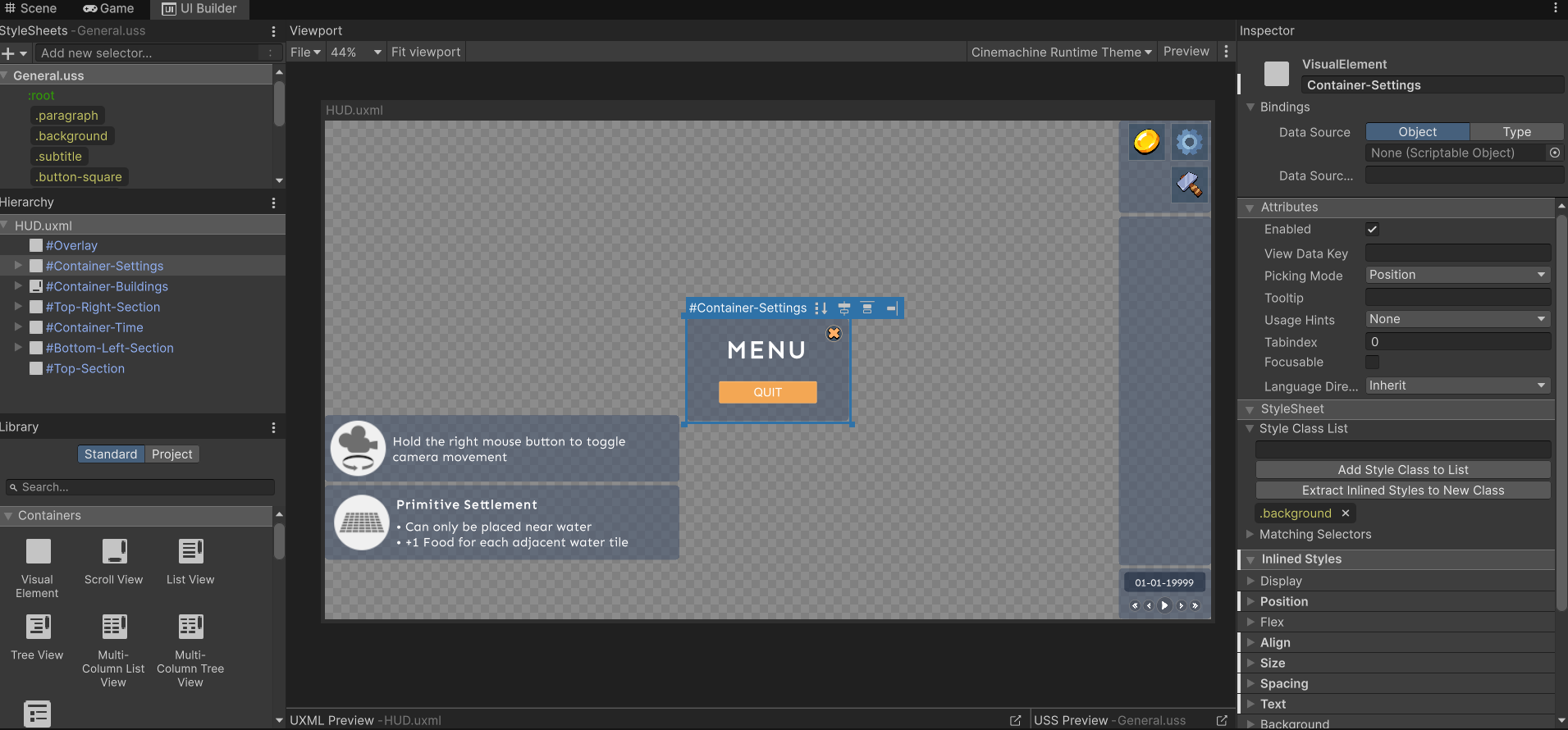
Looking at the picture above:
On the top left you will find your stylesheets. USS is used to style multiple elements at once. You can use one for all of your UI documents or create individual ones. There you can create class selectors just like in CSS, such as ".selected", ".disabled" or anything you'd like.
This is a huge improvement from the old uGUI system where changing a color or font would be a pain in the ass since you'd have to change all components individually. Or have to create a master script to handle it for you.
Below it on the middle to the left you find your hierarchy. Just like in Unity the UI Toolkit hierarchy works the same. Except that, just like in frontend frameworks, styles applied to the parent are automatically inherited by its children.
On the bottom left you find your component library.It has rects, buttons, images, anything you need to build your UI. This is exceptionally helpful when you compare it to the old system which required you to save and reuse a bunch of prefabs very specific to your game.
On the right you find your inspector. Just like any Unity inspector that is where you will define all the properties of your visual elements.
On the bottom, you may expand a window to see the UXML code generated if that makes you happier.
Finally but not least, in the center you find your viewport. This is where you will build and preview your UI. The workflow is simple, drag a visual element from the library; assign proper sizing and styling in the inspector and move it somewhere in the hierarchy.
Just don't forget this is now frontend development just like CSS. So moving objects in the hierarchy can make them look much different because of the styles inherited by its parent.
Moving Forward
This post will only go as far as I can superficially show you concepts through text.
Going ahead with this framework will open space for many questions such as:
How is data binded?
How is procedural UI instantiated?
How are animations applied to this framework?
UI Toolkit acceptance in the Unity environment is not massive and, therefore, I found the documentation much more lackluster than for other features.
This is a rare time where I won't default to documentation and instead tell you to ask ChatGPT. Surprisingly it knows it pretty well and it can get you up and running with it quicker than any docs will, so far.
As of now the UI Toolkit package is still being updated, and in fact many things have changed since I started learning it.
The goal is to understand the concepts and approaches instead of memorizing code.
Migrating from uGUI to UI Toolkit requires thinking more like a frontend developer: UXML defines the structure, USS handles the styling, and C# controls the behavior. Once you understand visual trees, selectors, and layout rules, building complex interfaces becomes much easier and organized than the alterantive.
UI Toolkit is still evolving, so some things may change between Unity versions. It also will not replace uGUI in every situation. Specially world space UI.
But if you are building large and reusable interfaces, learning a little CSS and understanding the underlying concepts will take you much further than memorizing equivalent components.