

UNITY & C#
EXPERT DEVELOPER
Implementing GPU Instancing in Unity
By Eduardo Martinelli | May 19, 2025
In this post, I will walk you through the concepts of this technique and how to build a GPU Instancing component that you will use to render thousands of objects per batch. Using Unity Engine 2022.3.15.f1 and the Universal Rendering Pipeline (URP).
What we'll cover:
- Getting Started
- URP Implementation
- Batching Efficiently
- Benchmarking Results
Rendering Many Objects
Performance bottlenecks often emerge from scale in game development. Different techniques to batch and reduce draw calls are key to the success of countless game titles that render thousands of identical meshes to be simultaneously. Yet, some major game engines don't do it by default. Unity Engine being one of them.
First we should understand that Unity does handle most of the batching itself, most notably with static batching and the SRP batcher. But we can go further as it is not always efficient and somewhat limited. Often individual GameObjects and MeshRenderers create separate draw calls even though they share the same mesh or material data. In large game worlds this can overwhelm the CPU and cause frame rate drops.
GPU instancing is a technique that leverages parallel processing capabilities of modern graphics hardware and gives you control over the batching of mesh renderers. We will build a prototype and gradually approach the core concepts of this implementation in Unity.
The video below shows a direct comparison of GPU Instancing and Non-GPU Instancing impacts on performance. Pay extra attention to the number of draw calls. GPU Instancing make draw calls significantly less often than its counterpart — increasing performance severely.
Understanding the Core Concept
GPU instancing is elegant in its simplicity. Rather than instructing the GPU to draw each individual mesh separately, we provide a single mesh and a collection of transformation matrices that tell the GPU where to place each instance of that mesh. This approach allows the graphics hardware to handle the repetitive work in parallel, dramatically reducing CPU overhead and draw calls.
Think of it like the difference between placing individual bricks on a wall, versus placing a thousand bricks at once using a blueprint. The performance gain is from rendering in bulk through fewer batches.
Prototype: Direct Rendering
Go on, create an empty Unity project and attach the upcoming scripts to objects in your scene.
The first approach we’ll explore is interfacing directly with Unity’s rendering pipeline through the OnRenderObject callback:
using UnityEngine;

public class GPUInstancing : MonoBehaviour
{
    public Mesh mesh; // Mesh rendered
    public Material material; // Material Rendered

    void OnRenderObject()
    {
        if (mesh == null || material == null) return;

        material.SetPass(0);
        Graphics.DrawMeshNow(mesh, transform.localToWorldMatrix);
    }
}
This implementation works by hooking into Unity’s rendering process after the standard rendering pass. OnRenderObject provides a direct interface to the rendering pipeline, allowing us to issue immediate drawing commands through Graphics.DrawMeshNow.
Why Transform.localToWorldMatrix? It gives the full transformation matrix from your GameObject’s local space to world space, including translation (position), rotation, and scale. When passed to Graphics.DrawMeshNow, it ensures that the mesh is rendered in the correct position and orientation in the world.
While this approach successfully renders meshes, it has two significant limitations: it doesn’t properly support Unity’s Universal Render Pipeline (URP) lighting system, and more importantly, it doesn’t actually leverage instancing yet. Each object would still require a separate call to DrawMeshNow, which doesn’t solve our fundamental problem.

URP Compatibility: Adapting the Approach
To address the compatibility issue with Unity’s Universal Render Pipeline, let's revise the implementation to Graphics.DrawMesh using DrawMeshNow instead:
using UnityEngine;

public class GPUInstancing : MonoBehaviour
{
    public Mesh mesh;
    public Material material;

    void Update()
    {
        if (mesh == null || material == null) return;

        // Properly queues the mesh for URP rendering with lighting and shadows
        Graphics.DrawMesh(mesh, transform.localToWorldMatrix, material, 0, Camera.main, 0, null, false, false, false);
    }
}
This modification properly integrates with URP’s rendering pipeline, ensuring that lighting, shadows, and other visual features work correctly. Graphics.DrawMesh() differs from DrawMeshNow() — rather than rendering immediately, it queues the mesh for rendering during the appropriate pass in the pipeline.
 A single rendered mesh with proper URP lighting and shadows
Now the URP compatibility issue is fixed. But we are still effectively rendering one object at a time, leaving our core performance problem unsolved. Let’s fix that.
True GPU Instancing: Drawing Many Meshes
Our solution comes from Graphics.DrawMeshInstanced() — Unity’s dedicated API for GPU instancing. This function allows us to submit an entire array of transformation matrices at once, saving up on function calls and enabling the GPU to render many instances of the same mesh in a single batch:
using UnityEngine;

/// <summary>
/// Handles GPU instanced rendering of a single mesh with a shared material.
/// Call Setup to initialize the rendering data.
/// </summary>
public class GPUInstancing : MonoBehaviour
{
    private Mesh _mesh;
    private Material _material;
    private Matrix4x4[] _matrices;

    private const int batchSize = 1023; /// Unity's limit for DrawMeshInstanced is 1023 instances per call.

    /// <summary>
    /// Initializes the GPU instancing system with the mesh, material, and transforms.
    /// </summary>
    /// <param name="mesh">The mesh to be drawn using instancing.</param>
    /// <param name="material">The shared material to apply to each instance.</param>
    /// <param name="matrices">An array of transforms (as Matrix4x4) representing instance positions and orientations.</param>
    public void Setup(Mesh mesh, Material material, Matrix4x4[] matrices)
    {
        _mesh = mesh;
        _material = material;
        _matrices = matrices;
    }

    private void Update()
    {
        if (_mesh == null || _material == null || _matrices == null) return;

        // Render in batches of 1023 (Unity's limit per instancing call)
        for (int i = 0; i < _matrices.Length; i += batchSize)
        {
            int count = Mathf.Min(batchSize, _matrices.Length - i);

            // Draw the current batch of instances
            Graphics.DrawMeshInstanced(
                _mesh,
                0,
                _material,
                _matrices,
                count,
                null,
                UnityEngine.Rendering.ShadowCastingMode.On,
                true,
                0,
                null
            );
        }
    }
}
Why do we group a maximum of 1023 mesh per batch?
Unity can only process 1023 instances per DrawMeshInstanced call. By batching our instances in groups of 1023, we work around this constraint while still achieving great performance.
The real magic happens in the matrices array, where each Matrix4x4 contains the position, rotation, and scale of each individual instance. This information is passed to the GPU in batches, allowing it to efficiently render thousands of objects with minimal overhead, looking just like any object rendered on the CPU.
We need a way of using this class set’s code a simple test script:
using UnityEngine;

/// <summary>
/// Test class to initialize a GPU instancing system by generating a number of
/// instance transforms and passing them to a <see cref="GPUInstancing"/> component.
/// </summary>
public class GPUInstancingTester : MonoBehaviour
{
    [SerializeField] private Mesh _mesh;                    /// The mesh to render via instancing
    [SerializeField] private Material _material;            /// The material to apply
    [SerializeField] private int _objCount = 100;           /// Number of instances to generate
    [SerializeField] private GPUInstancing _gpuInstancing;  /// Reference to the GPUInstancing handler

    public void Start()
    {
        var matrices = new Matrix4x4[_objCount];

        /// Generate random positions and create transform matrices
        for (int i = 0; i < _objCount; i++)
        {
            Vector3 pos = new Vector3(
                Random.Range(-10f, 10f),
                Random.Range(0f, 5f),
                Random.Range(-10f, 10f)
            );

            /// Create a transform matrix at the random position, with no rotation and uniform scale
            matrices[i] = Matrix4x4.TRS(pos, Quaternion.identity, Vector3.one);
        }

        /// Send the data to the GPUInstancing component
        _gpuInstancing.Setup(_mesh, _material, matrices);
    }
}
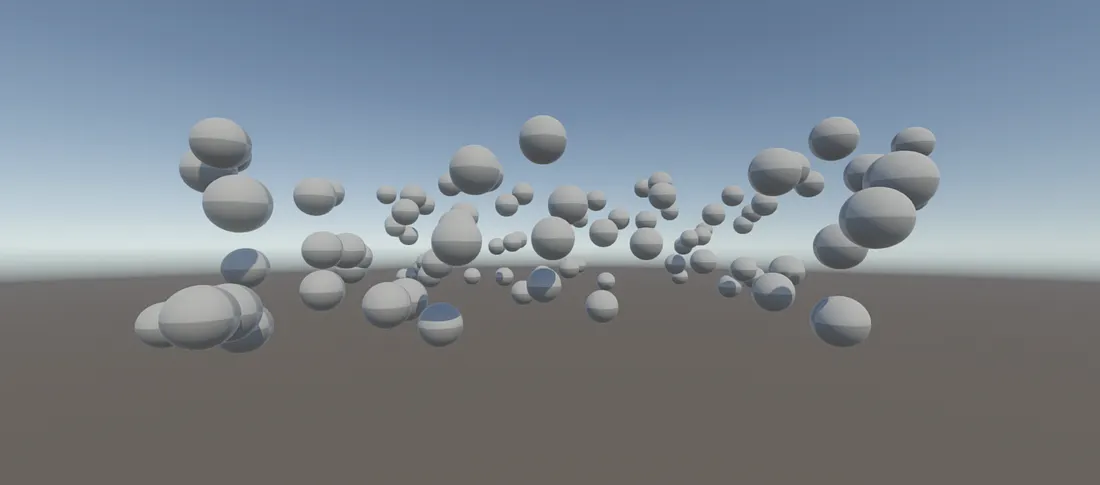 Multiple meshes rendered directly on the GPU
At this point we covered most fundamentals of Unity's GPU Instancing API and you should be ready to expand this to fit your project's needs.
Benchmarking With Multiple Meshes & Materials
I’ve spent some time building a more robust version, and a counterpart that does the same thing but on the CPU. This new version supports multiple different meshes, and even meshes with multiple materials each. It became my default for rendering in all of my projects, as the results showed a significant advantage for GPU Instancing and it's really easy to use.
You can get this package from the Asset Store down below: Ultimate GPU Instancing - Global Rendering Performance
For this benchmark I did two runs: a run with 40,000 GameObjects in-editor and a run with 80,000 GameObjects in-build.
Results:
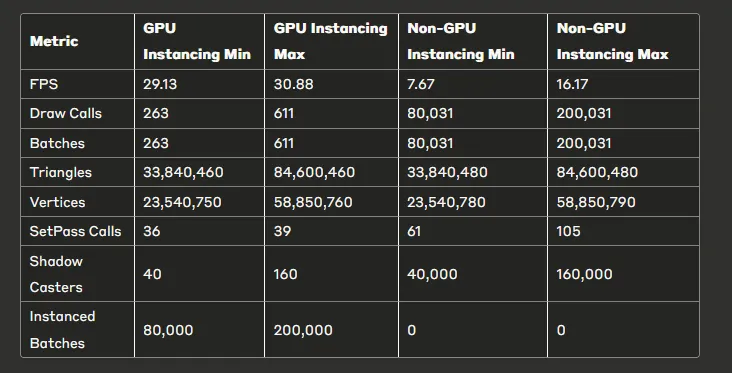
- GPU Instancing yields significantly higher FPS, indicating much better runtime performance.
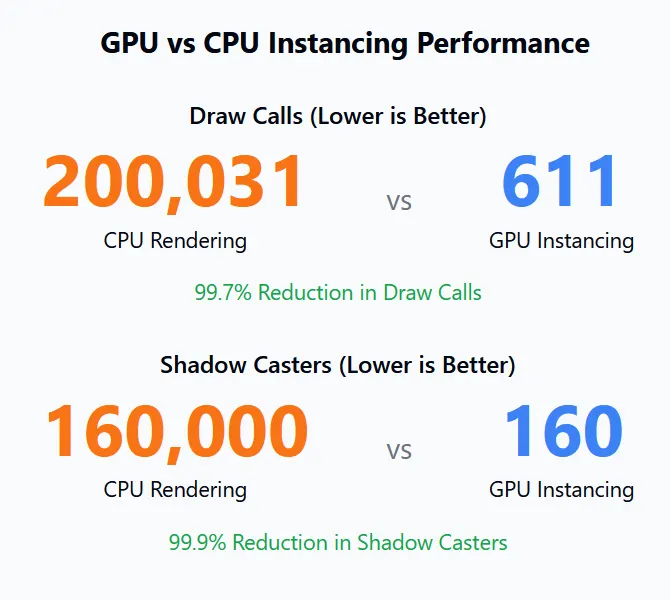
- GPU Instancing drastically reduces draw calls and batches, lowering the burden on the graphics API.
- GPU Instancing requires fewer SetPass calls, reducing CPU overhead.
- Triangle and vertex counts remain nearly identical, confirming that the geometry load is equivalent.
- Both methods render the same number of objects casting shadows (up to 160,000), but GPU Instancing does so with much less performance cost.
Conclusion: A Brief View of the Rendering Potential
GPU instancing represents a shift in how you may approach rendering at scale. With this technique, we’ve seen how thousands of objects can be rendered with minimal performance impact, transforming what would have been frame staggers into smooth gameplay.
This approach gives you direct control over the rendering process, allowing you to optimize specifically for your game’s needs rather than relying on Unity’s automatic batching, which often falls short with complex scenes.
Where to Go From Here
While this implementation provides a solid foundation, there are several avenues for further optimization and expansion:
- Add instance property variation: Using material property blocks to give each instance unique colors or properties without breaking batching.
- Implement culling strategies: Only render objects within the camera’s view frustum to further reduce GPU workload.
- Dynamic instance management: Add and remove instances at runtime without rebuilding the entire matrix array.
- LOD (Level of Detail) system integration: Combine instancing with LOD techniques for objects at different distances.
Remember that GPU instancing works best with objects sharing the same mesh and material. For games with diverse asset types, you’ll want to organize your instancing system by these shared characteristics.
By letting hardware do the heavy lifting through GPU instancing, you open the door to much richer, more densely populated game worlds without sacrificing performance. Create vast forests, crowded cities, or particle-rich space battles, master this technique and you have the tools to leverage the most performance out of your assets and engine.